Frame a region, then record
A gif maker on Windows records a selected area, then edits frames, then saves a file. ScreenToGif is that Windows gif maker app. Screen capture is the daily path. Webcam and sketchboard are the other README modes. Do not start with the whole desktop. Draw a rectangle around the control, the error, or the setting.
Install:
winget install -e --id NickeManarin.ScreenToGifRelated: install on Windows, make a gif, guides, gif maker.
What Windows needs before the first take
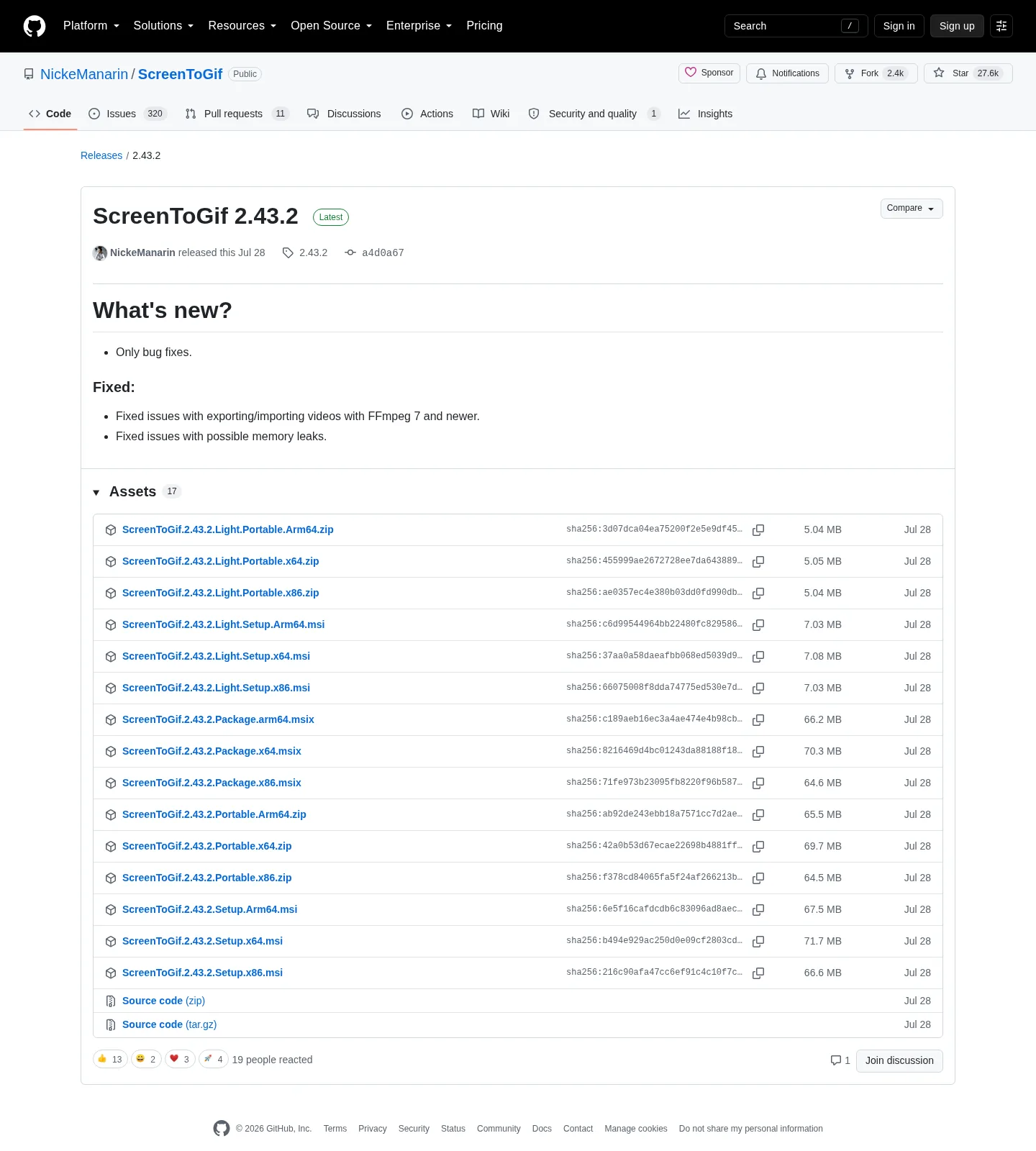
.NET 9 Desktop Runtime or above. App Installer if you use winget. A current ScreenToGif from GitHub Releases or winget id NickeManarin.ScreenToGif. Match x64, x86, or Arm64. Light versus full: light or full. Portable versus setup: portable or setup.
No account. Close extra ScreenToGif copies so only one recorder holds the region. Safe fetch: download safely.
Screen, webcam, or sketchboard
Pick one mode. Screen is a rectangle on the desktop. Webcam is a camera device: webcam guide. Sketchboard is a canvas in the app. After any of those, the editor is the same Windows program.
Perform the action at a pace a loop can show. Hover, click, and type while the region recorder is running. Stop soon. Long takes make huge gifs. A two-hour meeting belongs in a meeting recorder, not here.
| Step | What to do | Why |
|---|---|---|
| Frame | Size a small rectangle | Readable loop, smaller file |
| Record | Perform one action | One job per take |
| Stop | Open the editor | Frames are local |
| Trim | Delete bad start and end | Shorter gif |
| Export gif | Save to a named folder | Daily path |
| Export apng or video | After you need those formats | Video needs FFmpeg |
| Import video | Copy file, then FFmpeg | Not a live record |
Edit, then export
Delete frames you do not want. Export a gif when the loop is the deliverable. Export apng when you want a PNG animation. Export video when FFmpeg is present. Full format list: export gif, apng, video. Resize afterwards only if you framed too large: gif resizer. Convert a file you already have instead of recording: gif converter.
Browser encoders still exist for files already in a tab: vs EZGIF, switch from browser gif tools, move off web encoders. ShareX is a toolkit: vs ShareX. LICEcap is a thin region gif: vs LICEcap. Pick on the job.
Mistakes that waste a take
Recording the whole desktop. Leaving other windows in the rectangle. Letting a notification pop into the loop. Running two ScreenToGif copies. Skipping the desktop runtime so the window never opens. Grabbing a wrapper exe named gif maker. Stacking Store listing 9N3SQK8PDS8G, a portable zip, and winget on one PC.
The README does not list an Android installer. Copy a phone recording to the PC and import with FFmpeg if that is the source. Kap is a macOS recorder, not a Windows ScreenToGif path.
FFmpeg is later, not first
A live region gif does not wait on FFmpeg. Video import and export on the current tag mention FFmpeg 7. Add that encoder when the source is already a file, or when the destination wants MP4 or WebM. FFmpeg notes: FFmpeg. Export types: export gif, apng, video.
Phone recordings are files you copy to Windows. There is no android install path. Game Bar and Clipchamp are inbox Windows recorders. Copy their files here if you need a gif from that take. Converter: gif converter.
One official copy on this PC
Winget, the full x64 setup MSI, Light, portable zip, Store id 9N3SQK8PDS8G, and Chocolatey package screentogif are doors the README or winget-pkgs name. Pick one. Two copies is how people record with the wrapper that is still on the Desktop; this computer: gif maker on Windows. Install: install on Windows.
After the gif exists
Confirm it plays. Keep it in the folder you named. Update ScreenToGif through the same door you installed: winget or the current GitHub MSI. Portable users swap the folder. Windows cluster: open source gif maker on Windows; releases: gif maker releases; github: open source gif maker on GitHub; this computer: gif maker for this computer; winget howto: how to install winget; safety: is this gif maker safe; about: about; product home: screentogif.com; license: MS-PL; issues: ScreenToGif issues; wiki: ScreenToGif wiki. Chocolatey package screentogif is supporting only.
README asks people not to sell the app as theirs. Stay on NickeManarin/ScreenToGif for the bytes.
Record steps:
- Run the official winget command or take the x64 setup MSI from GitHub Releases.
- Launch ScreenToGif, pick screen capture, and size the rectangle around the window you care about.
- Start the take, perform the action, stop, and let the editor load the frames.
- Delete bad frames, then save a gif to a folder you named. Add FFmpeg only if you need video.
Runtime, architecture, and extra copies
The README requires .NET 9 Desktop Runtime or above. Full setup MSI and full portable zip bundle that runtime. Light setup and Light portable expect it already on the PC. Winget wraps the full setup MSI, so a typical winget install already carries the runtime.
Match x64, x86, or Arm64 to the machine. A typical current Windows desktop is x64. Arm64 Windows takes the Arm64 setup name from the current GitHub tag. Files: gif maker releases. Source: gif maker on GitHub. Safe download: download a gif maker safely.
Wiki installation parameters document MSI properties INSTALLDESKTOPSHORTCUT and INSTALLSHORTCUT. The example pattern is msiexec /i ScreenToGif.*.Setup.msi. Daily recording does not need those properties. Use them only for an unattended shortcut policy.
Keep one official copy. Extra unsigned gif-maker exes on the Desktop fight hotkeys and confuse which editor you opened. Uninstall extra copies from Windows Settings > Apps. Delete portable folders you do not trust. Skip Softonic and CNET wrappers.
Microsoft Store product id 9N3SQK8PDS8G is a supporting README path. Chocolatey is listed too; the README does not print a Chocolatey command, so this guide does not invent one. FOSSHUB is another creator-listed mirror. GitHub Releases and winget remain the two paths this recording guide maps.
ShareX can record a GIF as part of a capture suite. LICEcap writes a GIF from a tiny region frame. Neither replaces ScreenToGif’s editor, webcam, or sketchboard. Kap is a macOS recorder. There is no ScreenToGif Mac installer on the GitHub tag, and no Android installer. Phone video belongs on the PC as a file you import once FFmpeg is present.
After the first recording.
Play the gif in a browser you already have to confirm the loop. If it is huge, record a tighter region next time before you stack extra tools. gif resizer and gif converter still help after export. Browser encoders such as EZGIF remain useful for a file you already have in a tab; new captures belong on Windows. Comparison: gif maker versus EZGIF.
A ScreenToGif project is a folder of frames you can export and reopen. PNG frame export writes selected frames, optionally zipped. Use those when you need stills, not when you only wanted a loop.
No account is required; issues: NickeManarin/ScreenToGif issues; license: LICENSE.txt; wiki: ScreenToGif wiki; more notes: guides.
Frequently asked questions
How do I make a gif from a screen recording?
Install ScreenToGif, pick a selected area, record the window, stop, trim in the editor, and save a gif; related: make a gif and export formats.
Should I record the whole Windows desktop?
No. Frame a small window or control. A full-desktop take is heavy and hard to read as a gif. Resize later with gif resizer only after you framed the right region.
Can I convert a video to a gif with this gif maker?
Copy the video to the PC, point the app at FFmpeg 7 or newer, then import. That is an import, not a live record. FFmpeg: FFmpeg guide. Converter notes: gif converter.
Does this gif maker record a sketchboard?
Yes. The README lists sketchboard next to screen and webcam. Draw on the board, stop, edit, and export a gif or APNG. Webcam is a separate mode: webcam gif.
How do I install a gif maker before I record?
Run winget install -e --id NickeManarin.ScreenToGif or take the x64 setup MSI from GitHub. Install .NET 9 Desktop Runtime if the README requires it and you used a Light file. Guide: install on Windows.