Webcam is a first-class mode
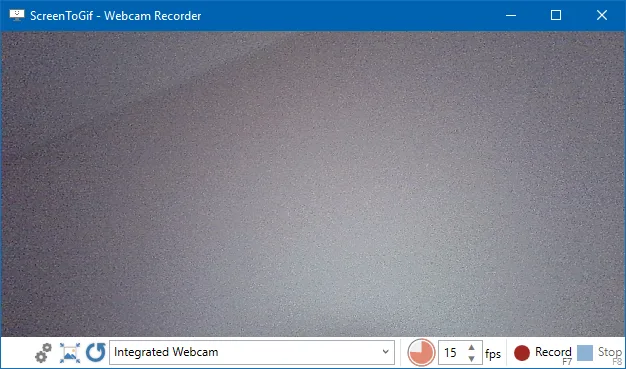
ScreenToGif is a Windows gif maker whose README names three capture modes: a selected area of the screen, a live webcam feed, and live drawings on a sketchboard. Webcam is not a hidden extra. Official media for that mode is what the figure on related pages shows. After the take you stay in the same app to edit and save.
Install:
winget install -e --id NickeManarin.ScreenToGifRelated: install on Windows, record on Windows, guides, gif maker.
What you need on the PC
A camera Windows already lists as a video device. ScreenToGif can refresh that device list. If the camera is in use by another app, close that app first. The gif maker does not install a driver. It records the feed the OS already exposes.
.NET 9 Desktop Runtime or above must be present: Microsoft runtime. Winget needs App Installer on Windows 10 1809 or later, or Windows 11. Arm64 Windows uses the Arm64 ScreenToGif asset and the Arm64 runtime.
No account. The feed is not uploaded as part of capture. Exports land where you save them.
How a webcam take differs from screen capture
Screen capture frames a rectangle on the desktop. Webcam capture frames the camera. Sketchboard frames a canvas you draw on. Pick one capture mode per recording so the editor opens the take you meant. You can export any of those takes as gif, apng, video, psd, or png after you edit.
Resize the webcam window to change how large the recording is. That size is the frame you will edit. A talking-head clip for a bug report can stay small. A demo that must be readable should sit closer to the camera and use better light. This is still a gif maker, not a streaming studio.
Screen capture walkthrough: record a gif on Windows. Export formats: export gif, apng, video. FFmpeg for video: FFmpeg guide.
Editor after a webcam take
Stop. The editor loads the frames. Delete a bad start in the editor before you export. Crop if the wiki and current build offer that edit for your take. Export a gif when you want a loop. Export apng when you want a PNG animation. Export video when FFmpeg is present and you want MP4 or WebM.
| Mode | What it captures | Typical export |
|---|---|---|
| Screen | A selected area of the desktop | Gif of a UI bug or setting |
| Webcam | Live camera feed | Talking-head loop or reaction |
| Sketchboard | Live drawings in the app | Hand-drawn explainer |
| Editor | Frames after any of the three | Trim, then gif, apng, video, psd, png |
| Account | None | Local files |
| Runtime | .NET 9 Desktop Runtime or above | Microsoft, not a second recorder |
Privacy is local capture. If the job must never leave the PC, do not paste the export into a browser encoder afterwards unless you mean to. Browser split: switch from browser gif tools, vs EZGIF, move off web encoders.
Devices, privacy, and extra copies
Windows may ask for camera permission. Grant it to ScreenToGif if you want this mode. Deny it if you only need screen capture. That is an OS prompt, not a ScreenToGif account.
Keep one official install so two copies do not fight. Winget, Store listing 9N3SQK8PDS8G, and a portable zip on the same PC is three copies fighting the camera. Uninstall extras in Apps settings. Portable versus setup: portable or setup. Light versus full: light or full. Safe download: download safely; safety: is this gif maker safe.
Skip Softonic wrappers and other countdown download sites. Stay on NickeManarin/ScreenToGif and Releases; product home: screentogif.com; license: MS-PL.
When webcam is the wrong mode
If the job is a UI bug, use screen capture. If the job is a drawing, use sketchboard. If the job is a two-hour meeting, use a meeting recorder that writes a long video, then cut later. Webcam in this gif maker is for short loops you will edit.
ShareX is a broader capture toolkit if you already live there: vs ShareX. LICEcap is a thin region gif recorder and is not a webcam app: vs LICEcap. Kap is a macOS recorder, not a Windows ScreenToGif path.
After you have a webcam gif
Confirm the file plays. Keep it in the folder you named. Resize if needed: gif resizer. Convert if needed: gif converter. From-scratch notes: make a gif; releases: gif maker releases; github: open source gif maker on GitHub; windows: open source gif maker on Windows; this computer: gif maker for this computer; about: about; issues: ScreenToGif issues; wiki: ScreenToGif wiki; winget howto: how to install winget.
The README does not list an Android installer. Copy a phone video to the PC and import with FFmpeg if that is the job, rather than hunting a fake camera app.
Webcam steps:
- Run the official winget command or take the x64 setup MSI from GitHub Releases.
- Launch ScreenToGif, choose webcam, and select the camera device Windows already knows.
- Start the take, stop when the clip is long enough, and open the editor.
- Trim bad frames, then save a gif to a folder you named, or export video after FFmpeg is present.
Runtime, FFmpeg, and extra copies
The README requires .NET 9 Desktop Runtime or above. Full setup MSI bundles it. Light files expect it on the PC. Winget wraps the full setup. Files: gif maker releases. Source: gif maker on GitHub. Safe download: download a gif maker safely. Winget: how to install winget; windows: gif maker on Windows.
Current release notes mention exporting and importing videos with FFmpeg 7. Webcam export to gif or APNG does not need FFmpeg. MP4 and WebM do. Download FFmpeg from inside ScreenToGif. Do not paste random encoder flags. Convert: gif converter. Resize: gif resizer. Capture: make a gif.
Keep one official copy so Windows camera permission applies to a single exe. Uninstall extras from Settings > Apps. Skip Softonic and CNET. Microsoft Store product id 9N3SQK8PDS8G is a supporting README path. Chocolatey is listed; no invented choco command.
ShareX is a capture suite, not a webcam gif editor. LICEcap records a desktop region, not a camera device. Kap is a macOS recorder, not this Windows gif maker. There is no ScreenToGif Android installer. Copy a phone video to the PC if that is the source.
No account. Files stay on the PC; issues: NickeManarin/ScreenToGif issues; wiki: ScreenToGif wiki; license: LICENSE.txt. Browser: gif maker versus EZGIF; home: gif maker home; more notes: guides.
Frequently asked questions
Does this gif maker record a webcam?
Yes. The README lists a live webcam feed next to screen and sketchboard. Pick the camera device, record, stop, then edit. Guide hub: guides.
Does this gif maker record a sketchboard too?
Yes. Sketchboard is the third README mode. Webcam is the camera. Sketchboard is live drawings in the app. Screen is a selected area of the desktop. Pick one mode per take, then use the same editor.
Can I export a webcam take as video?
Yes. README names gif, apng, video, psd, and png. Video export uses FFmpeg 7 and newer. Point the app at ffmpeg.exe first; related: FFmpeg guide.
Do I need an account to record a webcam gif maker clip?
No. ScreenToGif does not ask for a login. The camera feed is captured locally and edited on the PC. Install from winget or GitHub, then pick webcam.
How do I install a gif maker for webcam capture?
Run winget install -e --id NickeManarin.ScreenToGif or take the x64 setup MSI. Confirm .NET 9 Desktop Runtime. Then launch and pick webcam. Install: install on Windows.