Install this gif maker with winget
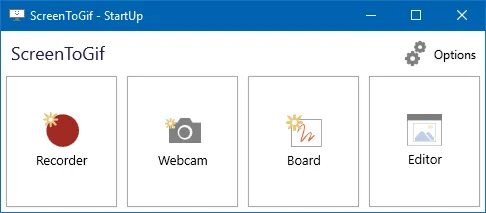
ScreenToGif is a Windows gif maker that records a selected area of the screen, a webcam, or a sketchboard, then opens an editor so you can save a gif, apng, video, psd, or png. The maintained package id in Windows Package Manager is NickeManarin.ScreenToGif. The command these notes paste is:
winget install -e --id NickeManarin.ScreenToGifThat identifier is in microsoft/winget-pkgs under manifests/n/NickeManarin/ScreenToGif. Installer type is WiX. Scope is machine. The installer URL on that manifest is the GitHub Releases full setup MSI. README itself does not print a winget line. It points at GitHub Releases, the Microsoft Store listing, and Chocolatey. Related notes: how to install winget, gif maker for this computer, and open source gif maker on Windows.
Do not substitute a random package that only resembles the name. The exact id is NickeManarin.ScreenToGif.
What Windows needs first
Winget ships with App Installer on Windows 10 version 1809 or later and on Windows 11. If winget is missing from Windows Terminal or PowerShell, install App Installer from Microsoft, sign out or reopen the terminal, and run the command again.
The README requires .NET 9 Desktop Runtime or above. That package is a Microsoft runtime, not a second gif app. If the MSI finishes and no window appears, install the desktop runtime, then launch from the Start menu. Arm64 Windows uses the Arm64 runtime and the Arm64 ScreenToGif asset. Mixing an x64 MSI with an Arm64 runtime is how people get a launch that never shows a window.
The current GitHub tag lists x64, x86, and Arm64. Default take for a normal desktop is ScreenToGif.*.Setup.x64.msi. If the PC is Arm64, take the Arm64 name. If the PC is 32-bit x86, take the x86 name.
GitHub setup MSI as the other path
If you prefer a file from GitHub Releases, take the Windows x64 setup whose name matches ScreenToGif.*.Setup.x64.msi. That is the WiX MSI winget already wraps. Portable alt is ScreenToGif.*.Portable.x64.zip. Light siblings sit on the same tag. Chooser: portable zip or setup MSI. Light versus full: light or full. Current assets live on gif maker releases.
A safe download walkthrough is on download a gif maker safely. Repo tree: open source gif maker on GitHub. Product homepage field on GitHub is screentogif.com. Files still come from GitHub Releases. Do not treat a countdown wrapper as a fourth store.
The Microsoft Store listing id is 9N3SQK8PDS8G. Chocolatey package page is screentogif, publisher NickeManarin. Those are supporting paths. These notes map winget and GitHub because those two share the same MSI.
Which file to take
| File | When to take it |
|---|---|
ScreenToGif.*.Setup.x64.msi | Default Windows x64 install. Winget wraps this MSI. |
ScreenToGif.*.Portable.x64.zip | A folder you unpack. No MSI. |
| Light setup or light portable | Smaller official pair on the same tag. Light omits bundled .NET bits. |
ScreenToGif.*.Package.*.msix | Store-style package on the same tag. |
| Arm64 or x86 siblings | When the PC is not x64. |
Winget id NickeManarin.ScreenToGif | Same full setup MSI through App Installer. |
| License | MS-PL, LICENSE.txt on master |
| Account | None |
Never pin a number from a blog. Open the current tag. Wiki MSI switches include INSTALLDESKTOPSHORTCUT and INSTALLSHORTCUT for people who run msiexec themselves. Daily users still run winget or double-click the MSI.
First run after install
Launch ScreenToGif from the Start menu after a setup or winget install, or from the exe inside a portable folder. Pick screen, webcam, or sketchboard. Record a small window, not the whole desktop. Stop. Open the editor. Delete a bad frame. Export a gif to a folder you named. Confirm the file plays in a browser you already have.
Webcam detail: webcam guide. Record walkthrough: record on Windows. Export formats: export gif, apng, video. If a video export asks for FFmpeg, read FFmpeg guide before hunting a random exe.
Settings stay on the PC. There is no login. If two copies run, quit extras. A Store install plus a portable zip plus a winget install is three copies. Uninstall extras in Apps settings, then keep one.
Updates and uninstall
For the installed build, return to winget or to the current GitHub release. Say the current release rather than a pinned tag. Portable zips are replaced by downloading a new zip from Releases and swapping the folder. Installed copies follow the setup or winget channel you used.
To remove the app, use Settings > Apps for winget or setup, or winget uninstall NickeManarin.ScreenToGif. For a portable folder, close the exe and delete that folder. Exports you saved are just files in the folder you chose. Delete those only if you want them gone.
Issues go to ScreenToGif issues. Wiki: ScreenToGif wiki. License text: MS-PL LICENSE.txt. README asks people not to sell the app as theirs.
Common Windows install mistakes
People grab the first search result named gif maker and run a helper from Softonic or CNET. Stay on NickeManarin/ScreenToGif, the current release, or winget id NickeManarin.ScreenToGif. Skip wrappers that wrap the name.
Skipping .NET 9 Desktop Runtime, then wondering why the window never opens, is the next mistake. Mixing a portable folder with a winget install so two copies fight is the third. Encoding only in a browser when the job is a live window on the PC is a workflow mistake, not an install failure: switch from browser gif tools and vs EZGIF.
The README does not list an Android installer or a Mac package. If a search result offers an apk or a brew cask for this name, it is not the path these notes map. ShareX and LICEcap are other Windows capture tools, compared separately: gif maker vs ShareX, gif maker vs LICEcap. Resize and convert jobs people already type sit on gif resizer and gif converter. A from-scratch clip sits on make a gif. Guide index: guides. Home install: gif maker. Editorial: about. Safety: is this gif maker safe.
Install steps:
- Confirm App Installer on Windows 10 1809 or later, or Windows 11, so
wingetruns in Windows Terminal. - Run the official command with id
NickeManarin.ScreenToGif. - Install .NET 9 Desktop Runtime or above from Microsoft if Windows asks, then launch again.
- Open ScreenToGif from the Start menu, pick screen, webcam, or sketchboard, and export a test gif.
Frequently asked questions
How do I install a gif maker on Windows?
Run winget install -e --id NickeManarin.ScreenToGif in Windows Terminal or PowerShell. Or take the current ScreenToGif.*.Setup.x64.msi from GitHub Releases. Related: how to install winget.
Does this gif maker work on Windows 11?
Yes. Assets are Windows MSI, zip, and MSIX. Winget needs App Installer on Windows 10 1809 or later, or Windows 11. The current GitHub tag lists x64, x86, and Arm64 files. Match the architecture of the PC.
What is the winget id for this gif maker?
The package id is NickeManarin.ScreenToGif in microsoft/winget-pkgs. Installer type is WiX, machine scope. README points at GitHub Releases, Microsoft Store, and Chocolatey rather than printing this line.
What does .NET 9 Desktop Runtime do for a gif maker?
The README requires .NET 9 Desktop Runtime or above. It is the framework ScreenToGif is built on, not a second recorder. Get it from Microsoft if the window never opens after the MSI. Runtime: .NET 9 Desktop Runtime.
Do I need an account for this gif maker?
No. ScreenToGif is free under MS-PL and does not ask for a login. Recordings and exports stay on the PC. Install from winget or GitHub Releases, then pick screen, webcam, or sketchboard.